
10 Best Workload Management Tools for 2027
Workload management is the feature that makes managers upgrade. You see someone working late again, you open the project tool to find out why, and discover the workload view is two plans up from the one you’re on.
So for each tool below we’ve noted which tier first includes workload or capacity views and what that costs a real team, taken from vendor pricing pages on 19 November 2026. We make Worklenz, and it’s on the list.
Quick picks
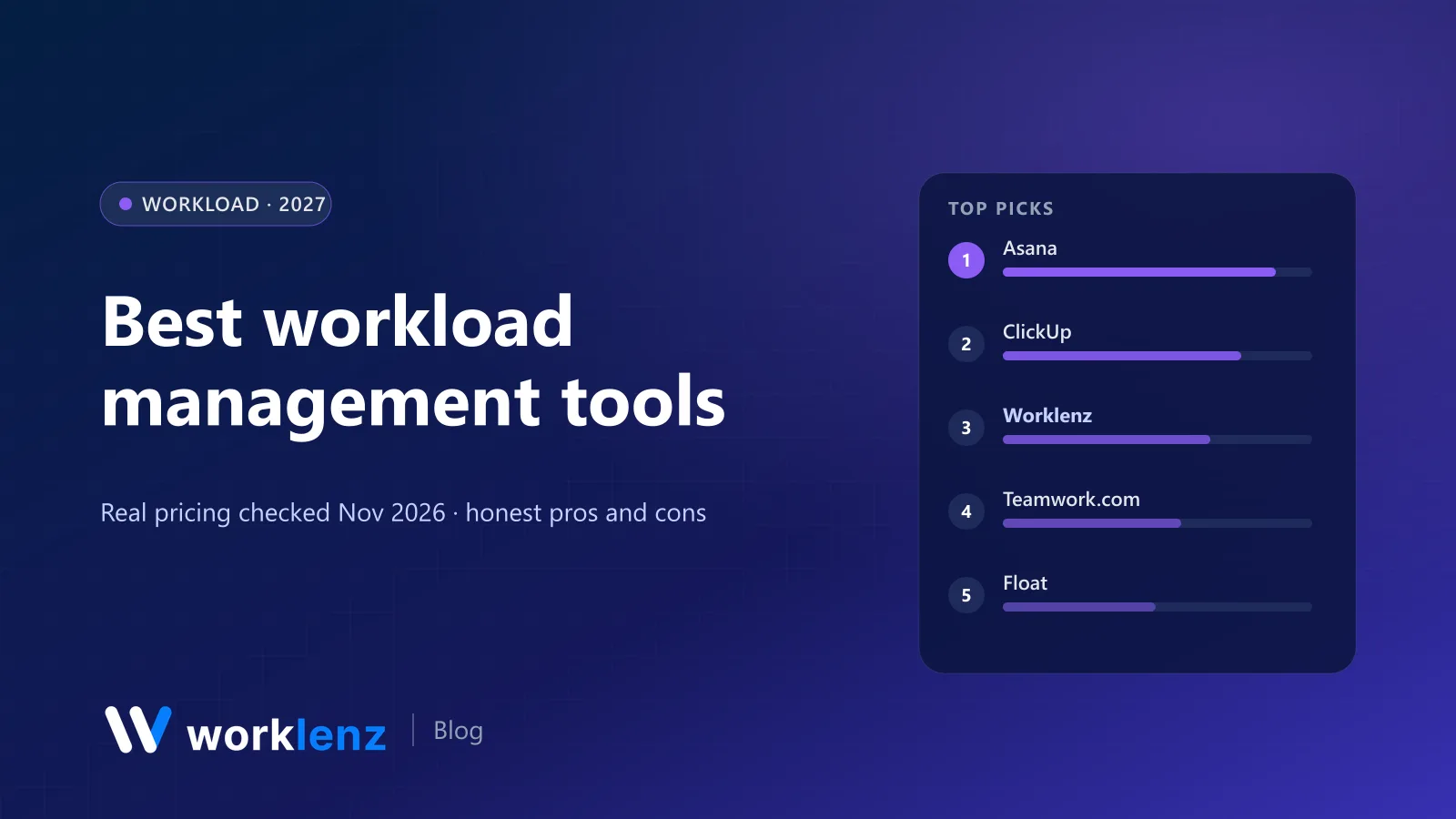
- Best overall: Asana (Advanced)
- Best for power users: ClickUp (Business)
- Cheapest workload view: Worklenz (Pro, $6)
- Best for client-work teams: Teamwork.com (Accelerate)
- Best for scheduling people, not tasks: Float
- Best tied to profitability: Productive
- Best for timeline-first planners: GanttPRO
Which plan includes workload
| Tool | Workload starts on | Price per user (annual) | Monthly cost, 10 users |
|---|---|---|---|
 Worklenz |
Pro | $6 | $60 |
 Float |
Starter (scheduling and capacity) | $7 per scheduled person | $70 |
 Productive |
Essential (resource planning) | ~$10–12 | ~$100–120 |
 Nifty |
Business | $16 per member, or $124 flat for 11–30 | $160 |
 GanttPRO |
Business | $17 | $170 |
 ClickUp |
Business | $17 | $170 |
 Smartsheet |
Business (3+ members) | $19 | $190 |
 Asana |
Advanced | $24.99 | ~$250 |
 Teamwork.com |
Accelerate (5-user min) | $24.99 | ~$250 |
 Wrike |
Pinnacle | Quote | Quote |
 monday.com |
Enterprise (resource management) | Quote | Quote |
What a good workload view does
The best workload views do four things. When you trial a tool, test all four:
- Show every person across every project, not one project at a time.
- Use real units: hours from estimates, or a capacity measure you control.
- Let you rebalance from the chart, by dragging or reassigning work.
- Know about time off, so capacity drops automatically during holidays.
The 10 best workload management tools
1. Asana
Asana’s workload view shows each person’s effort across projects in a portfolio, with drag-to-reassign and capacity lines. It’s the most intuitive workload experience in a general PM tool. It’s on Advanced ($24.99 a user annually), limited to a portfolio; organisation-wide workload needs Enterprise.
Strengths: intuitive drag-to-reassign; capacity lines per person; clean visuals. Limitations: needs Advanced; organisation-wide view is Enterprise.
Pick it if: you already use Asana and need to rebalance across projects. Skip it if: the jump from Starter to Advanced doubles your bill for one feature.
2. ClickUp
ClickUp’s workload view lets you measure capacity by tasks, points or time estimates and drag work between people. It’s on Business ($17 annually); Core users get it as a trial. Business also adds timesheets.
Strengths: flexible capacity measures; timesheets on the same tier. Limitations: Business needed; busy interface.
Pick it if: you want flexible capacity measures. Skip it if: your team is overwhelmed by ClickUp’s options already.
3. Worklenz
Worklenz shows workload across every project a person is on, using time estimates on tasks, and compares estimated to actual time logged. The scheduler lets you plan people’s weeks and the cross-project planner shows team utilisation at a glance. It’s on Pro ($6 annually, $8 monthly), with full scheduler editing on Business ($10). There’s no minimum seat count, and time-off marking is included even on Free.
Strengths: cheapest workload view here; estimates vs actuals; time off built in. Limitations: rebalancing is less drag-and-drop than Asana’s; best for project work, not ongoing operations.
Pick it if: you want workload, time tracking and client work together on a budget. Skip it if: your team is happily embedded in another PM tool.
See Worklenz team utilisation.
4. Teamwork.com
Teamwork.com’s workload planner shows live capacity and lets you reassign from the planner. It’s on Accelerate ($24.99, 5-user minimum) alongside time budgets and retainers.
Strengths: live capacity; reassign from the planner; retainers. Limitations: $24.99 a seat; 5-user minimum.
Pick it if: you’re a client-service team that wants a polished planner. Skip it if: you’re under five people.
5. Float
Float isn’t a task manager; it’s a people scheduler. Capacity, time off and resource scheduling are on Starter ($7 per scheduled person). It’s ideal when the question is “who’s on what next week” rather than “how many tasks does Sam have”.
Strengths: fastest schedule editing; capacity on the entry plan. Limitations: doesn’t know about tasks; needs a PM tool alongside.
Pick it if: you schedule people in blocks across projects. Skip it if: you want workload derived from tasks.
6. Productive
Productive’s resource planning sits on Essential and connects bookings to budgets, so overloading someone shows up as a margin problem too.
Strengths: workload linked to profitability. Limitations: no free plan; heavier than a pure workload view.
Pick it if: you run an agency and care about profitability. Skip it if: you just want a workload chart.
7. Smartsheet
Workload tracking is on Business ($19 annually, 3+ members). The deeper Resource Management product is a paid add-on.
Strengths: workload inside a familiar grid. Limitations: add-on for deeper planning; no free plan.
Pick it if: you already run on Smartsheet. Skip it if: you’d be adopting it just for workload.
8. GanttPRO
GanttPRO adds a workload view to its Gantt charts on Business ($17 annually), alongside time tracking and budget planning.
Strengths: workload next to the timeline. Limitations: less useful if you don’t plan in Gantt.
Pick it if: your planning is timeline-first. Skip it if: you don’t use Gantt charts much.
9. Nifty
Team workloads are on Nifty’s Business tier ($16 per member for small teams, or $124 a month flat for 11–30 people on annual billing).
Strengths: flat pricing for mid-size teams. Limitations: workload not on Pro.
Pick it if: you’re 11–30 people and like flat pricing. Skip it if: you need workload on a cheaper plan.
10. Wrike
Wrike’s advanced resource and capacity planning is on Pinnacle, which is quote-only. It’s strong but aimed at larger, structured teams.
Strengths: advanced capacity planning for large teams. Limitations: quote-only; not for small teams.
Pick it if: you’re already on Wrike and scaling up. Skip it if: you need transparent pricing.
Also worth a look
- Resource Guru: capacity heatmaps on Blackbelt ($8).
- Runn: utilisation charts and forecasting, from 20 resource seats.
- Timely Premium: planned time and workspace capacity ($16).
- monday.com Enterprise: resource management for big monday customers.
Making workload views actually useful
A workload chart is only as good as the data behind it. Four habits make the difference:
- Estimate every task, even roughly. No estimate, no workload.
- Set realistic capacity. Nobody does 40 hours of project work a week. Start at 30–32.
- Mark time off. Holidays and leave should reduce capacity automatically.
- Compare estimates with actuals monthly. If your estimates are consistently 30% low, the workload chart is lying to you.
A 20-minute weekly workload review
- Minutes 0–5: look at next week. Who’s over 100%? Who’s under 60%?
- Minutes 5–15: move or reschedule work for anyone overloaded. Agree it with the project lead in the room.
- Minutes 15–20: check last week’s actuals against estimates for one project. Note anything that ran long.
Which tool for which team
- Small agency or studio: Worklenz Pro.
- Cross-functional company team on Asana: Asana Advanced.
- Power users on ClickUp: ClickUp Business.
- Agency scheduling people across many clients: Float.
- Margin-focused agency: Productive.
A worked example: capacity in practice
Say you run a five-person team and plan in weekly hours.
| Person | Contracted | Meetings and admin | Project capacity | Scheduled next week | Load |
|---|---|---|---|---|---|
| Amal | 40 | 8 | 32 | 38 | 119% |
| Dilini | 40 | 8 | 32 | 20 | 63% |
| Kasun | 32 (part-time) | 4 | 28 | 27 | 96% |
| Nethmi | 40 | 10 | 30 | 31 | 103% |
| Ruwan | 40 | 8 | 32 | 22 | 69% |
The view makes the next move obvious: move about six hours from Amal to Dilini or Ruwan, and check whether Nethmi’s extra hour points to an underestimated task. Without a workload view, you’d find out on Thursday when Amal’s deadline slips.
Two things make this work: capacity is realistic (nobody is planned at 40 project hours), and tasks have estimates. Every tool on this list can only show what you give it.
Common workload mistakes
- Counting tasks instead of hours. Ten small tasks and one huge one look the same in a task count.
- Ignoring time off. A week’s holiday should drop capacity to zero, automatically.
- Planning to 100%. Unplanned work always arrives. Aim for 80 to 90 percent of project capacity.
- Only managers look at it. Let people see their own load; they’ll flag problems earlier.
- Never checking actuals. If the plan says 20 hours and the timesheet says 30, your estimates need work.
Rolling out workload management
- Week 1: set capacity for everyone and add time off.
- Week 2: estimate all open tasks, roughly. Hours or half-days are fine.
- Week 3: run the first 20-minute workload review and rebalance.
- Month 2: compare estimates to logged time and adjust how you estimate.
Questions to settle during the trial
- Does the workload view show every project at once, or do you have to open them one by one?
- What unit does it use? Hours, tasks or points. Make sure it matches how your team estimates.
- Can you rebalance from the chart, or do you have to leave it to reassign work?
- Does time off reduce capacity automatically?
- Can team members see their own load, or only managers?
- What does it cost at the tier that includes workload, for your team size, a year from now?
Load two weeks of real work into the trial and run the weekly review twice. If the chart changes a decision either time, it’s worth paying for.
FAQ
What is a workload management tool?
Which project management tool has the best workload view?
Is there a free workload management tool?
How do I measure team workload?
What are the signs a team's workload is unbalanced?
See your team's real workload for $6 a user.
Worklenz Pro shows workload across all projects with time tracking built in, so estimates and actuals sit side by side.
Start a 14-day trialRelated: Best resource management software · How to manage team workload · Best team management software